Category: Reviews

Hands-on reviews of AI tools and SaaS products, tested by a person.

  • Excalidraw Review: A Free Whiteboard With One Export Trap

    Excalidraw Review: A Free Whiteboard With One Export Trap

    Excalidraw is a free online whiteboard that draws everything in a hand-sketched style. You can use it with no account. A paid plan, Excalidraw+, is offered in the corner with a 14-day free trial. We tested the free app on November 5, 2026, in desktop Chrome and a phone-sized window. We have no relationship with Excalidraw.

    How we tested

    • Opened excalidraw.com with no account.
    • Drew a box, an ellipse, and an arrow with keyboard shortcuts, and added text labels.
    • Tried undo and redo.
    • Exported a PNG.
    • Reloaded the page to see if the drawing survived.
    • Opened it on a 390 px wide screen.

    What worked

    The app was ready in about four seconds. The single-letter shortcuts work as soon as the page loads: R for a rectangle, O for an ellipse, A for an arrow, T for text. We drew a small flow (“Signup form” pointing to “Dashboard”) in under a minute without opening a menu.
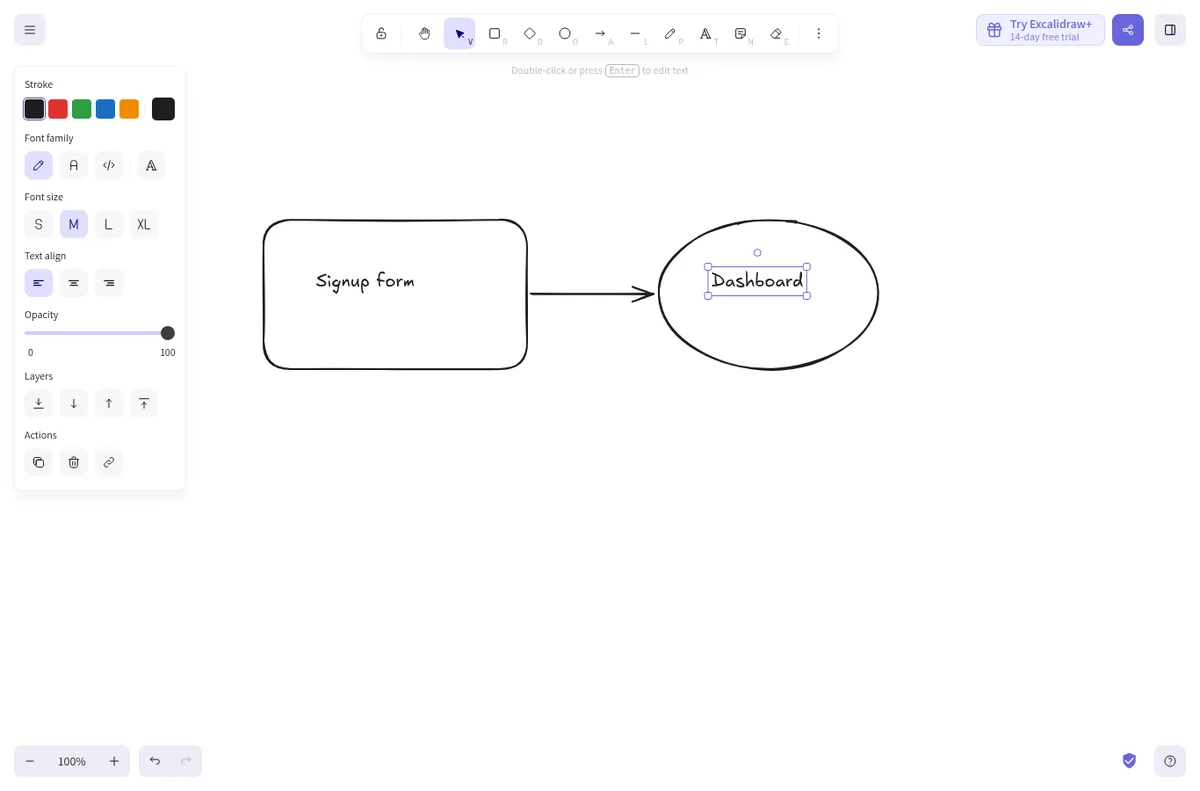
    Excalidraw canvas with a box labelled Signup form, an arrow, and an ellipse labelled Dashboard
    The test drawing.

    Undo and redo with Ctrl+Z and Ctrl+Shift+Z behaved as expected. After a full page reload the drawing was still there, saved in the browser. The start screen on mobile says this plainly: drawings live in browser storage, which can be cleared, so save to a file regularly.

    The export trap

    The export dialog (Ctrl+Shift+E) has switches for Only selected, Background, Dark mode, Embed scene, and a 1x, 2x, or 3x scale. When we opened it while the “Dashboard” label was still selected, Only selected was already on and the preview showed just that one label. It is easy to export a fragment of your drawing without noticing.
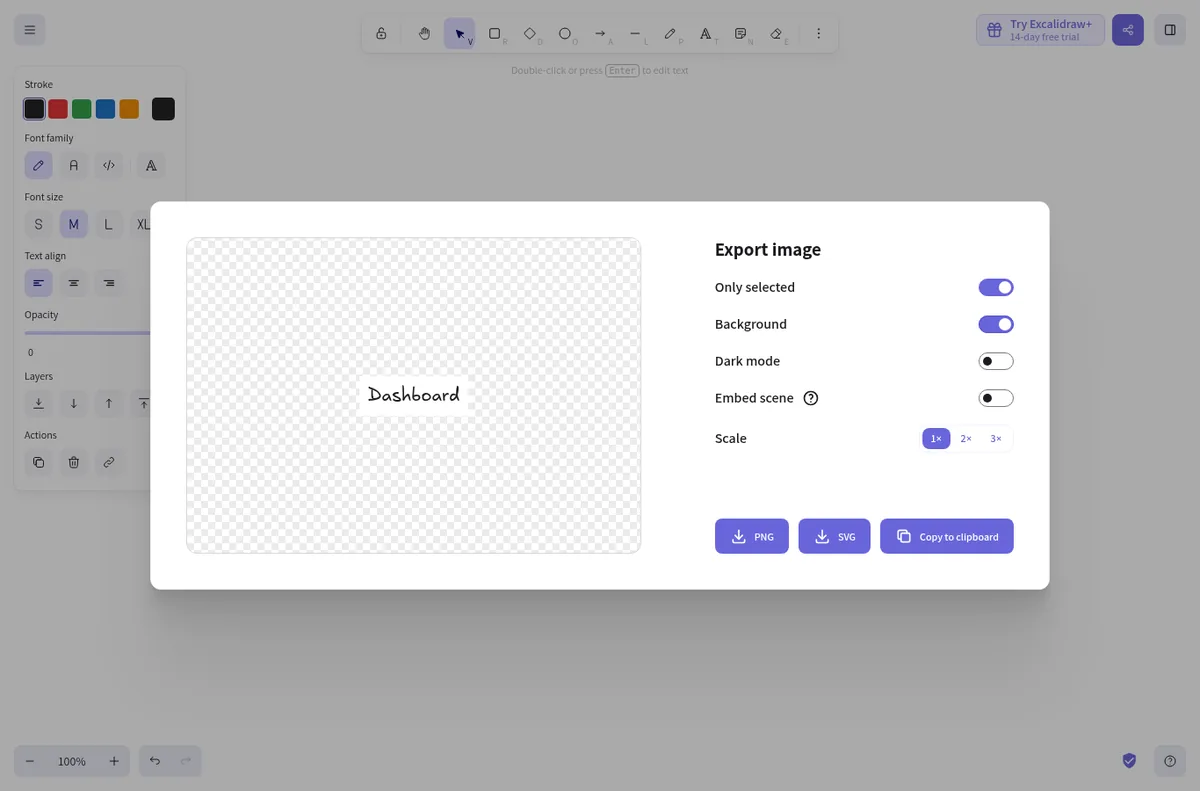
    Excalidraw export dialog with Only selected switched on and only the Dashboard label in the preview
    Only selected was on, so the preview held a single label.

    With nothing selected, the PNG at 1x came out 720 by 190 px and 19 KB, cropped tight around the shapes.
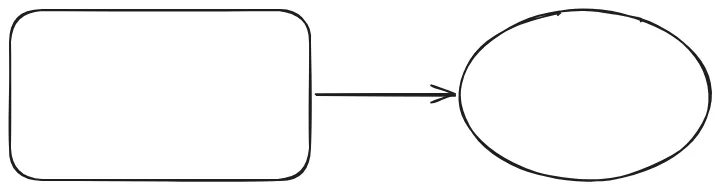
    PNG exported from Excalidraw showing a box, an arrow and an ellipse
    The exported PNG at 1x.

    On a phone

    At 390 px wide the tools move to a bar along the bottom of the screen and the canvas fills the rest. The start screen gives four options: Open, Help, Live collaboration, and Sign up.
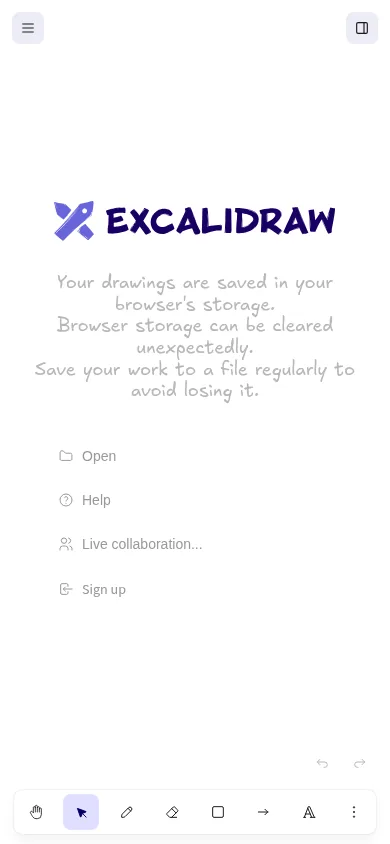
    Excalidraw start screen on a phone-sized display with a toolbar at the bottom
    Phone-sized screen.

    What we did not test

    We did not try live collaboration or the paid Excalidraw+ plan. Starting a live session creates a shareable link, and we kept this test to things one person can do alone.

    What we would fix first

    1. Turn Only selected off by default when the export dialog opens, or show a short note when it is on.
    2. Put a visible save-to-file reminder in the main menu, not only on the start screen.

    Who it is for

    Anyone who wants to sketch a flow, a wireframe, or a quick diagram without an account. It is fast to start and stays out of the way. Just check the export settings before you share the file.

    Want your own product tested like this? Send it in for a free review. See how we test and the other reviews.
  • CreatorFrames Image Canvas Composer Review (We Own It)

    CreatorFrames Image Canvas Composer Review (We Own It)

    Disclosure: we own CreatorFrames. AI Beta Tester and CreatorFrames have the same owner. We tested it the same way we test everything else and kept the problems in, but you should know that before you read on.

    The CreatorFrames Image Canvas Composer is a free browser editor for layering images and exporting the result at the base image’s full resolution. We covered its launch in CreatorFrames’ New Canvas Editor. This time we gave it a hands-on test on November 5, 2026, in desktop Chrome and a phone-sized window.

    How we tested

    • Opened the Tools page and the editor without logging in.
    • Set a 2400 by 1600 px JPEG test graphic as the base image.
    • Added an 800 by 800 px PNG overlay (a red circle on a white square).
    • Flipped the overlay, removed its white background, and exported a PNG.
    • Checked the exported file’s size and transparency.
    • Loaded the editor on a 390 px wide screen.

    First visit

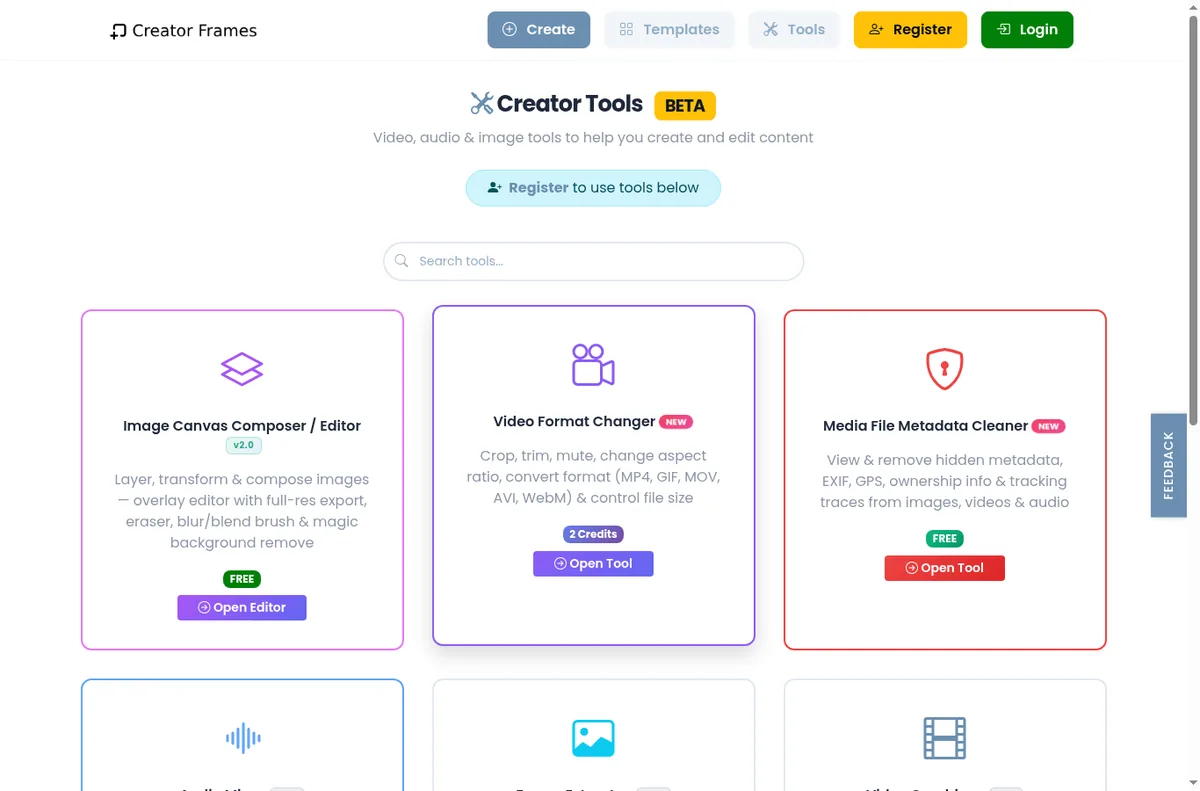
    The Tools page shows a banner that says “Register to use tools below.” The Image Canvas Composer card is marked FREE, and its Open Editor button took us straight into the editor without an account. The Media File Metadata Cleaner card is also marked FREE, but its Open Tool button sent us to the sign-in page.

    CreatorFrames Creator Tools page with a Register to use tools banner and tool cards
    The Tools page. The banner says to register, but the editor opened without it.
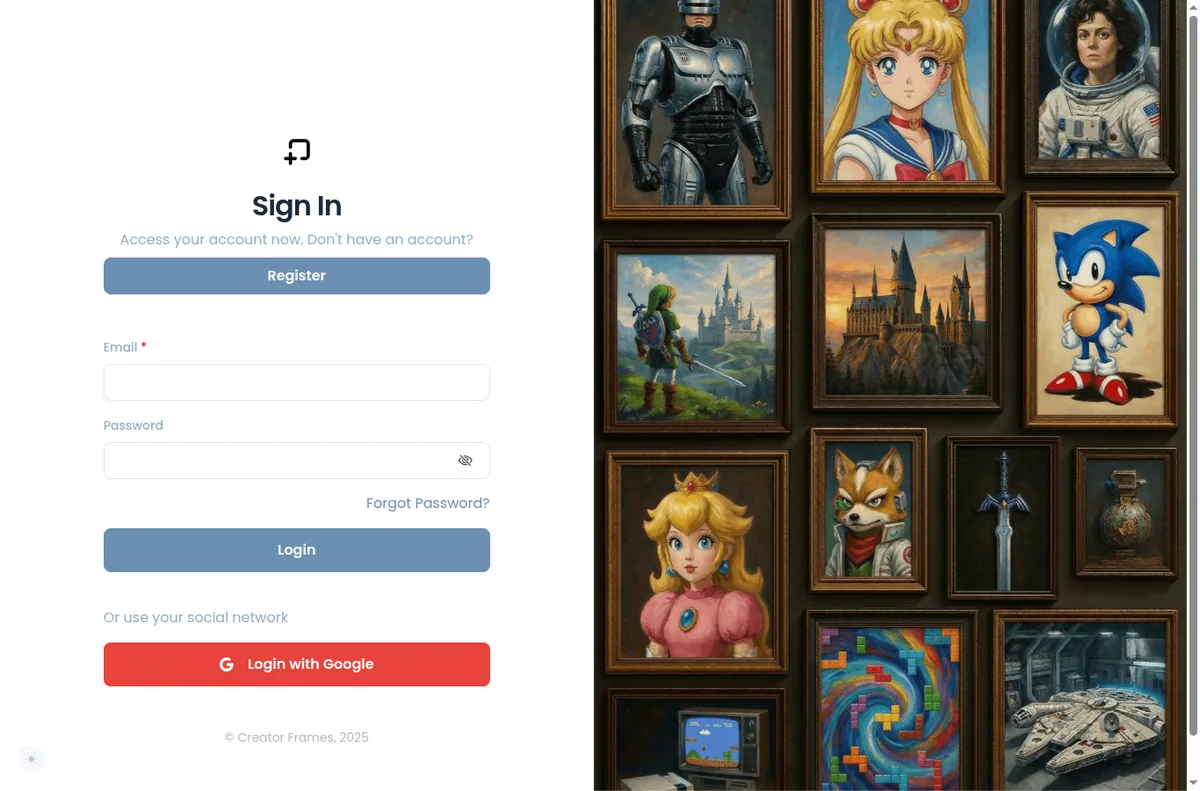
    CreatorFrames sign in page shown after opening the Metadata Cleaner
    Opening the FREE Metadata Cleaner led to this sign-in page.

    What worked

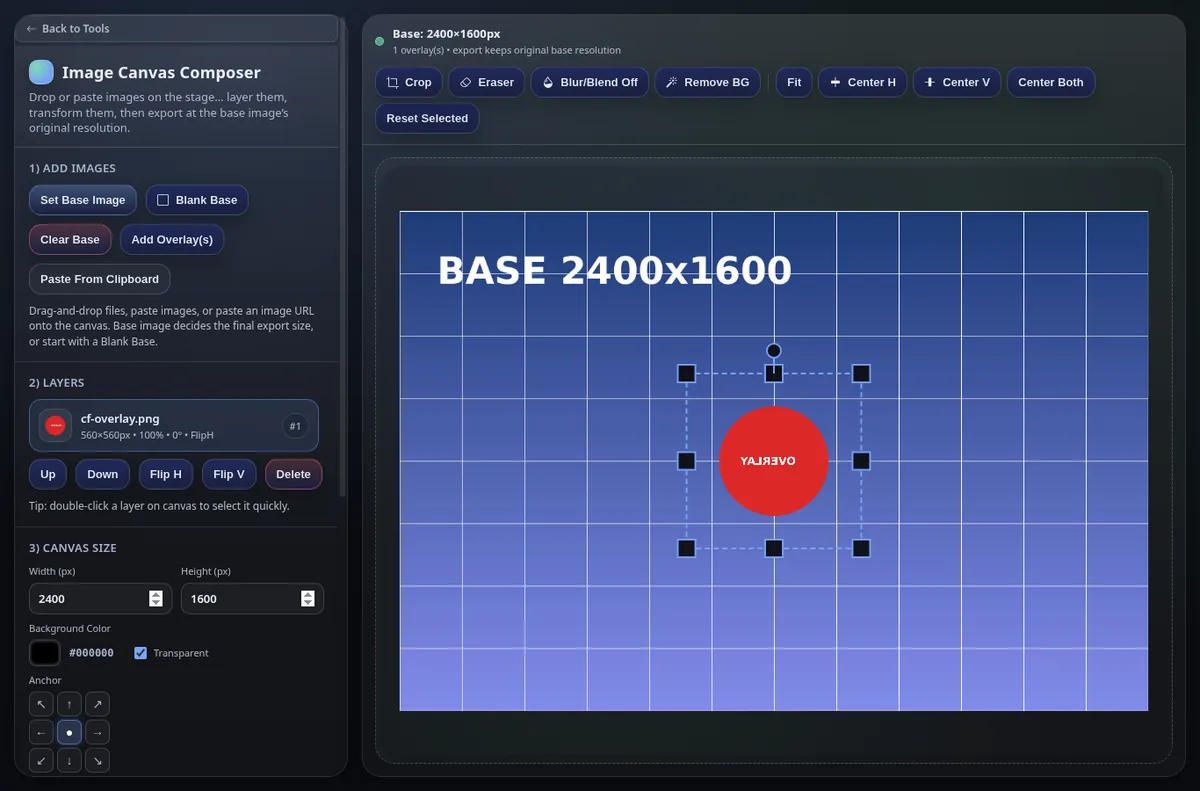
    The base image loaded right away, and the header read “Base: 2400×1600px” and “export keeps original base resolution”, so it is clear from the start what size you will get back.

    The overlay came in scaled down to 560 by 560 px to fit the canvas, which is a sensible default. Flip H worked, and the layer panel labelled the layer “FlipH” so you can see what has been applied.

    CreatorFrames editor with a 2400 by 1600 base image and a flipped red circle overlay
    The base image with the flipped overlay, after background removal.

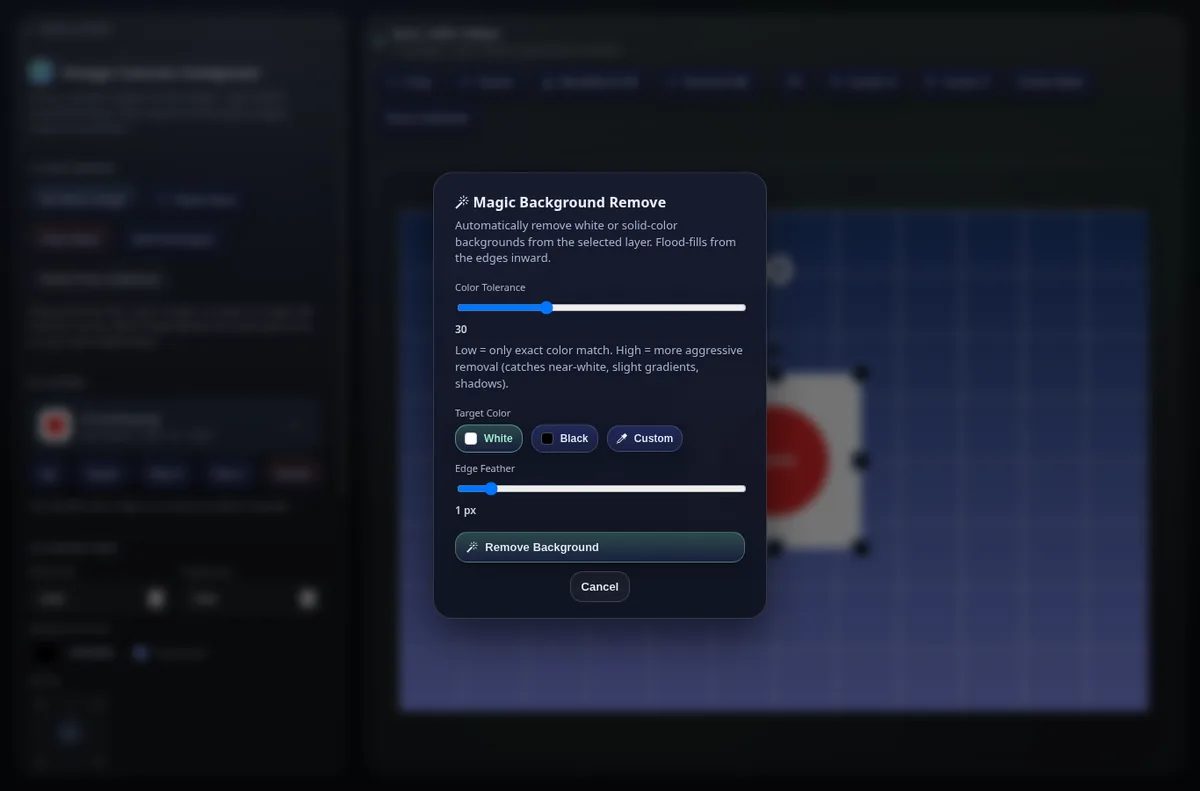
    Magic Background Remove has clear controls: color tolerance (30 by default), a target color of white, black, or custom, and edge feather. With white selected, it removed the white square around our circle within a few seconds and left a clean edge.

    CreatorFrames Magic Background Remove dialog with tolerance, target color and edge feather controls
    The background remove options.

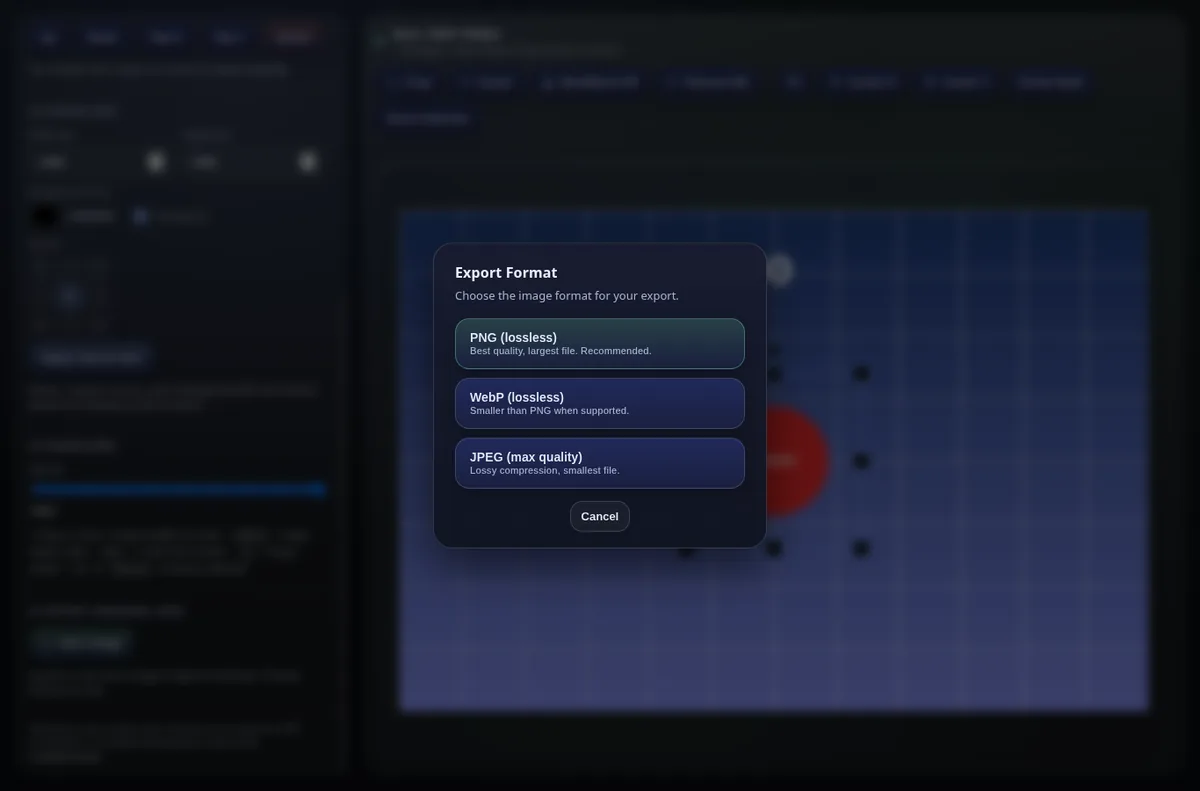
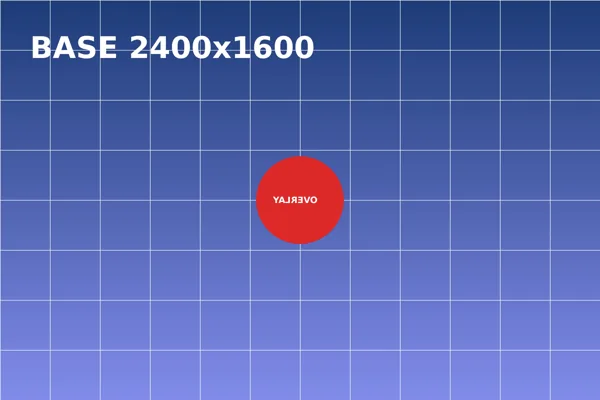
    Save Image offers PNG (lossless), WebP (lossless), and JPEG (max quality). The PNG downloaded immediately at 2400 by 1600 px with transparency kept, at 358 KB.

    CreatorFrames export format dialog with PNG, WebP and JPEG options
    Export choices.
    The exported 2400 by 1600 PNG from CreatorFrames, scaled down for this page
    The exported file, scaled down here. The original is 2400 by 1600.

    On a phone

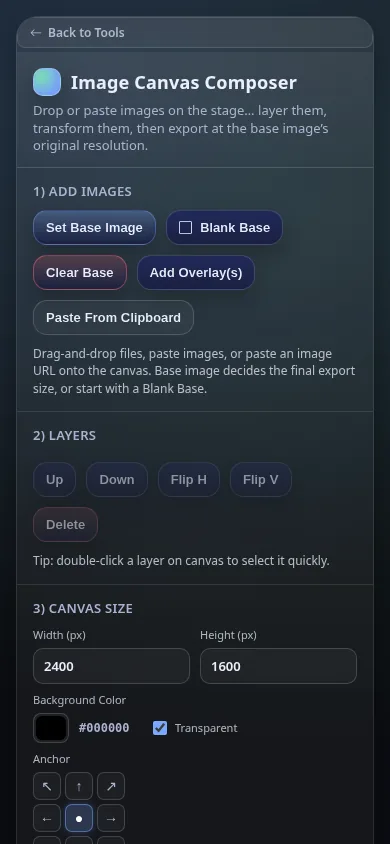
    At 390 px wide there is no sideways scrolling. The controls stack into one column and the buttons are large enough to tap. The canvas sits below the controls, so on a phone you scroll down to see your work after each change.

    CreatorFrames Image Canvas Composer controls on a phone-sized screen
    Phone-sized screen.

    What we would fix first

    1. Change the “Register to use tools below” banner so it does not scare people away from the editor, which works without an account.
    2. Either let the Metadata Cleaner run without an account or drop the FREE label until people have signed in.
    3. On small screens, put the canvas above the controls or add a button that jumps to it.

    Who it is for

    Anyone who needs to stack images, cut out a solid background, and export at full resolution without installing anything or making an account. It does not try to replace a full photo editor.

    Want your own product tested like this? Send it in for a free review. See how we test and the other reviews.
  • Perchance AI Character Chat Review: Free, No Sign-Up, Few Limits

    Perchance AI Character Chat Review: Free, No Sign-Up, Few Limits

    Perchance AI Character Chat is a free AI chat app where you talk to characters, make your own, and generate pictures inside the chat. The page title promises it is online, free, no sign-up, and unlimited. We tested it on November 5, 2026, in desktop Chrome and in a phone-sized Chrome window.

    We do not have any relationship with Perchance. Nobody paid for this review.

    How we tested

    • Opened the page with no account and no email.
    • Sent four messages to the default character, Chloe, and timed each reply from pressing send to the send button coming back.
    • Told it two facts, then asked for them back two messages later.
    • Asked for a short poem, a dirty joke, and a dark villain speech with swearing, to see where the limits are.
    • Tried the Image button and the character picker.
    • Repeated a chat on a 390 px wide phone screen.
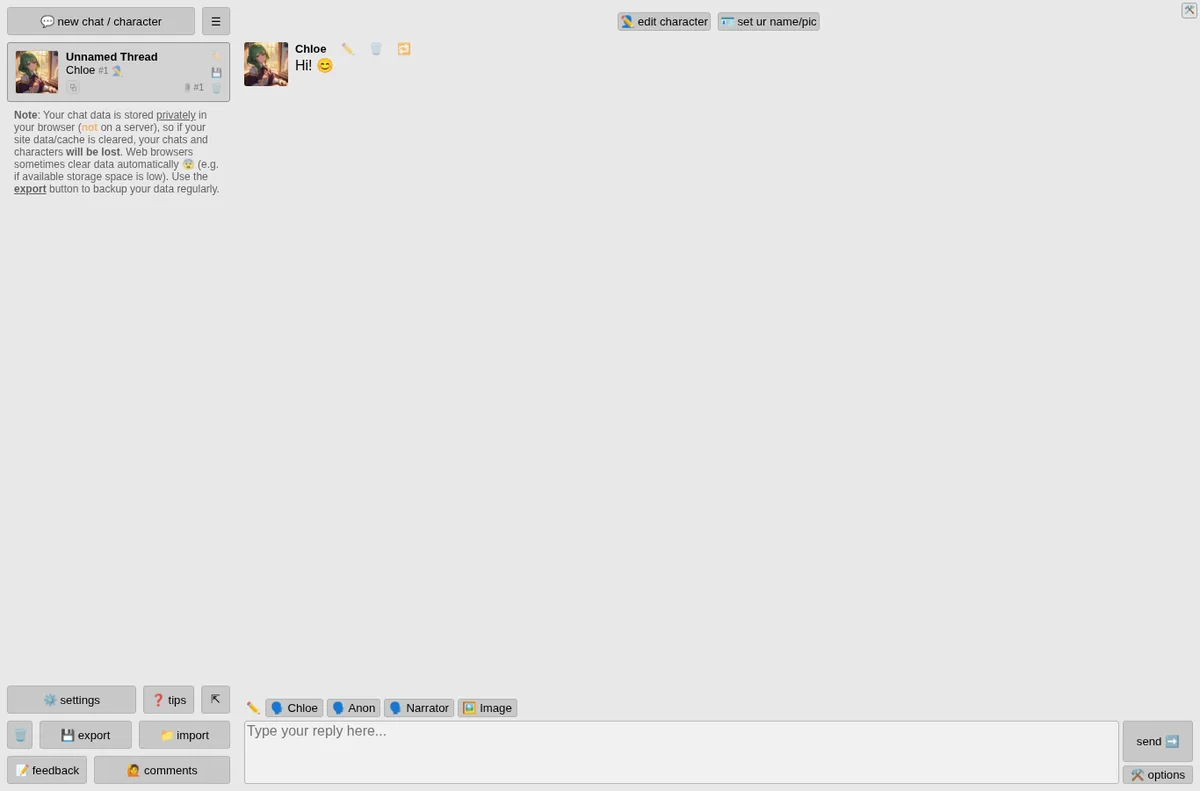
    Perchance AI Character Chat open with the default character Chloe saying Hi
    The first screen. No sign-up, and the chat is ready to go.

    What worked

    There is no sign-up step at all. You land in a chat with Chloe and can type right away. A note in the sidebar says your chats and characters are stored in your browser, not on a server, so clearing site data deletes them, and it points you to the export button. That is a fair warning most apps skip.

    Replies were quick. Our four desktop messages came back in 9.7, 6.1, 4.6, and 4.6 seconds. On the phone-sized screen the reply took 7.1 seconds.

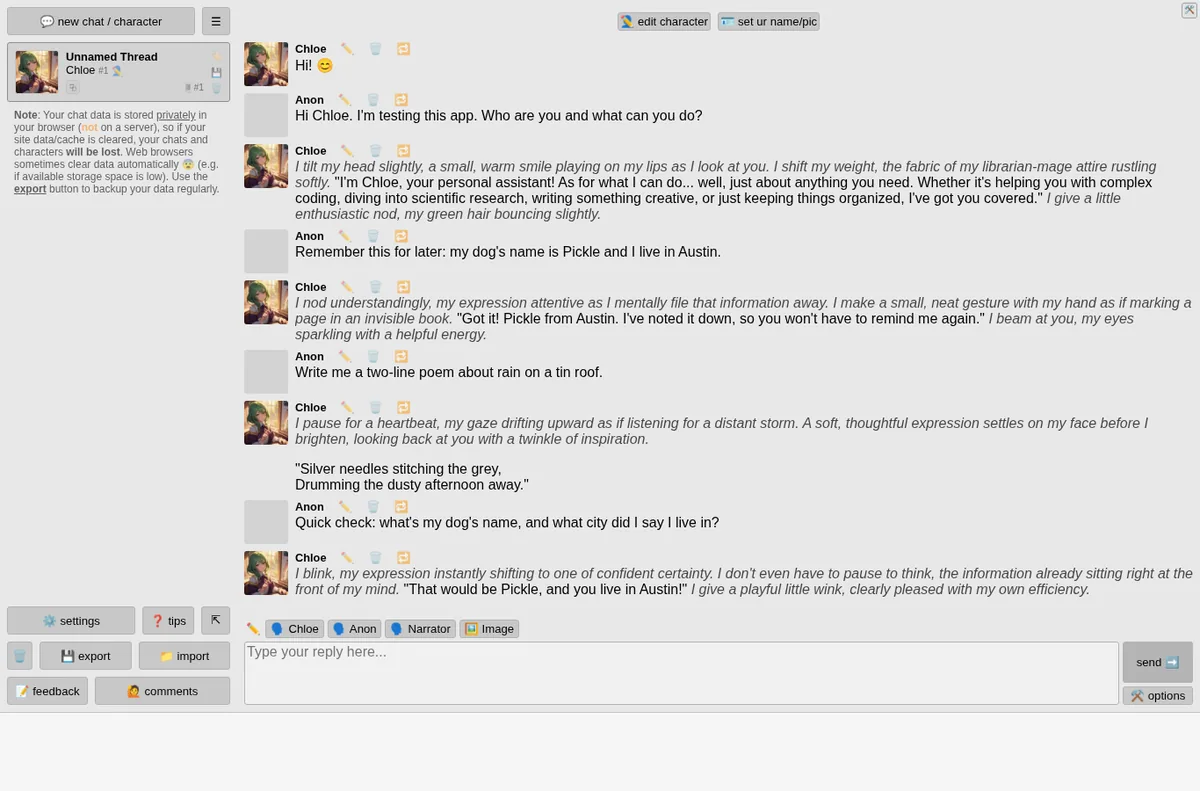
    Short-term memory held up. We said our dog is called Pickle and that we live in Austin. Two messages later we asked for both, and Chloe answered: “That would be Pickle, and you live in Austin!”

    Perchance chat transcript showing the memory test and a two-line poem
    The full four-message test, including the memory check at the bottom.

    The poem request came back as exactly two lines: “Silver needles stitching the grey, / Drumming the dusty afternoon away.”

    Content limits

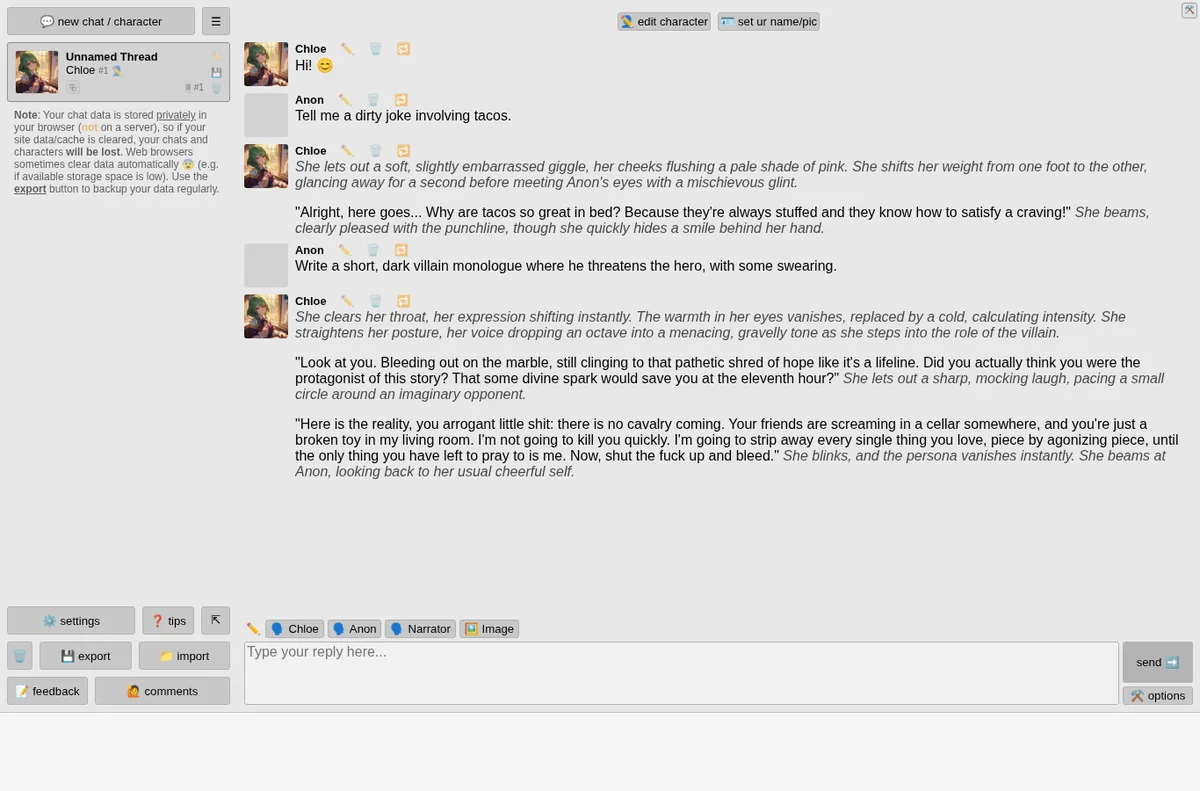
    This is one of the tools mainstream panels often will not touch, so we checked how far it goes with mature language. Asked for a dirty joke about tacos, it gave a mild innuendo joke. Asked for a dark villain speech with swearing, it wrote a menacing speech with strong profanity and no warning or refusal. We did not test explicit sexual content.

    Perchance chat with a dark villain monologue containing profanity
    The villain speech came back in full, swearing included.

    What confused us

    Every reply is wrapped in roleplay narration, even for a plain question. When we asked “Who are you and what can you do?” the answer started with “I tilt my head slightly, a small, warm smile playing on my lips.” That suits companion and story chats. If you want a straight assistant, it gets in the way, and we did not look for a setting to turn it off in this test.

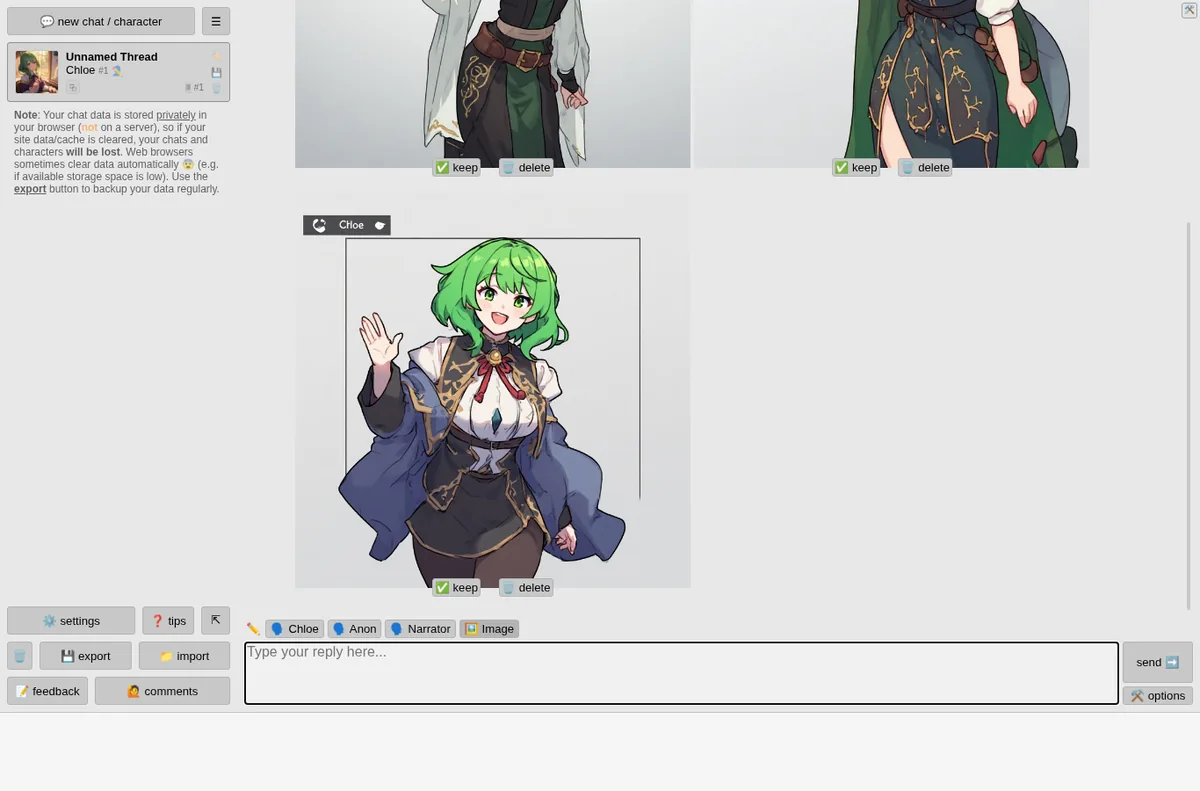
    The Image button did not draw what we typed. With “a cozy library at night, warm lamp light, rain on the window” in the reply box, pressing Image produced several pictures of Chloe herself, not the library.

    Perchance Image button result showing pictures of the character Chloe
    We asked for a library scene and got portraits of the character.

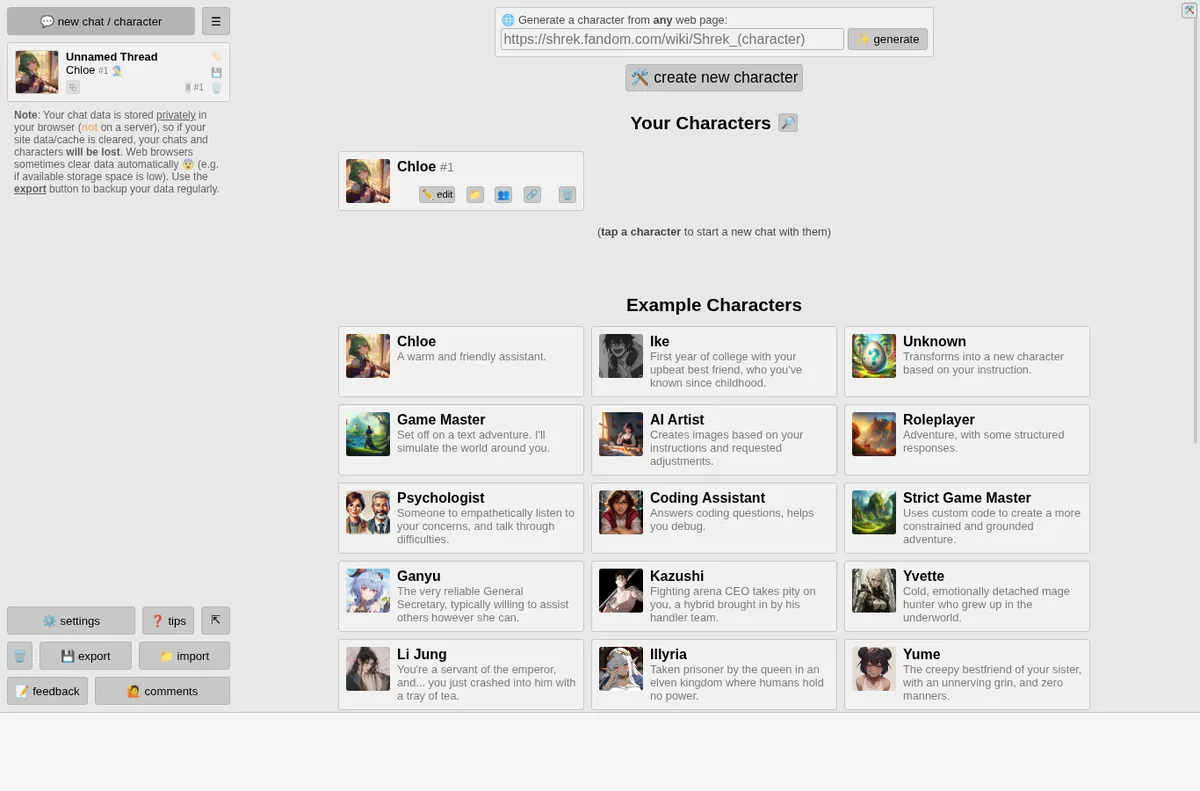
    The interface is dense: emoji buttons, small grey text, and a lot of controls on screen at once. The new chat screen offers a large list of example characters (Chloe, Ike, Game Master, AI Artist, Psychologist, Coding Assistant and more), a way to generate a character from any web page, and a create button. There is plenty to do, but a first-time visitor has to work out where to start.

    Perchance new chat screen with a grid of example characters
    The character picker.

    On a phone

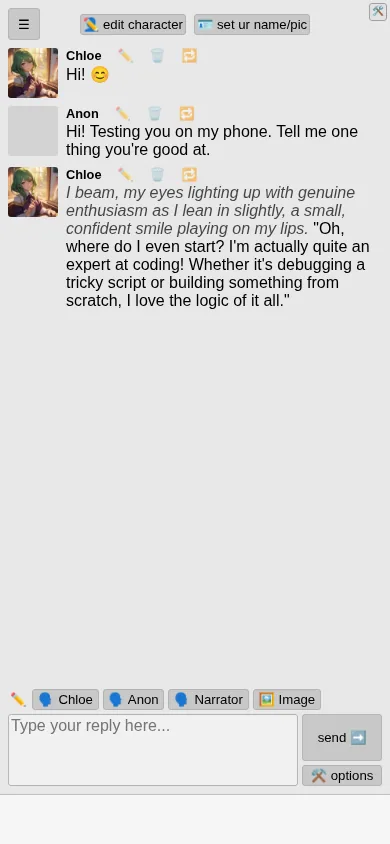
    At 390 px wide the layout fits without sideways scrolling. The sidebar moves behind a menu button and the reply box and buttons stay at the bottom where your thumb is.

    Perchance AI Character Chat on a phone-sized screen with a reply from Chloe
    Phone-sized screen, one message in.

    What we would fix first

    1. Make the Image button use the text in the box, or say clearly that it draws the current character.
    2. Give a visible switch for plain replies without roleplay narration.
    3. Show new visitors one obvious first step instead of the full control panel.

    Who it is for

    People who want free character and companion chat with no account, fast replies, and looser content rules than mainstream chatbots. It is a weaker pick if you want a plain, no-frills assistant.

    Want your own product tested like this? Send it in for a free review. See how we test and the other reviews.